How To Flash Update The BIOS On GIGABYTE BRIX

A quick quide to flashing the BIOS on your GIGABYTE BRIX. I’ve had a number of these and they make great little servers or media streaming PC’s, however it really is best to update the BIOS on these little boxes as it fixes a number of issues the tiny PC’s have.

Firstly you will need your specific BRIX models BIOS file.

Click here to download Gigabyte Brix BIOS files

Select your the BRIX model from the list then click on the tab “Support” next choose BIOS and download the latest BIOS file.

You will also need these:
HP USB Disk Storage Format Tool
Win98Boot

  1. Run hpusb.exe to install the utility.
  2. Plug in you USB flash drive to your computer. (all current files will be deleted)
  3. Run the program you just installed (HP USB Disk Storage Format Tool).
  4. Select your USB flash drive as your device.
  5. Choose FAT32 as file system.
  6. Under format options, choose create a DOS startup disk.
  7. Select ”using DOS system files located at” and point the program to the folder ”win98boot” which you just downloaded (you need to unzip this file).
  8. Click the start button.

Part 2:  Flash the BRIX using the bootable USB flash drive:

  1. You now have a bootable USB flash drive, next copy the BIOS and other files over.
  2. Download the latest BIOS for your BRIX.
  3. Unpack the file you just downloaded.
  4. You now see three files, AFU303.exe, flash.bat together with the BIOS file. Copy all three files to the USB flash drive.
  5. Choose ”replace all files on destination” if you get this option.
  6. Reboot your computer, and during boot press ″F12″.
  7. Choose boot from USB.
  8. You will see a Windows 98 loading screen very briefly and then get a C: prompt.
  9. Type flash.bat then press return / enter.
  10. The AMI firmware update utility will now update your BIOS.
  11. All done!

Minnie’s Friends Charity New Website Launched

Having been recently introduced by the Vicar to a gentleman from her congregation who was looking to have a holding page produced for his charity Minnie’s Friends in Loughborough which was about to be relaunched. I jumped at the chance to help, always happy to support worthy local charities by giving my time and skills freely, so I produced them a quick and simple holding page.

Minnie's Friends Website

Aerial Photos of Bury Camp, Hillfort, Ratby, Leicestershire

Unbeknownst to me Bury Camp the oldest known human settlement in Ratby, is a probable Iron Age encampment dating back approximately 3000 years, the site was also adapted by the Roman army for use as a temporary fort in around 50 AD. As this interesting historical location is only a stones throw away from my front door my interest was piqued, armed with this knowledge my companion and guide for the morning was Mr Alan Sims, after a coffee and with all the equipment loaded it was time for our little adventure, sadly our first aerial escapade was cut short suffice to say it involved a low battery and an emergency landing! After we recovered the downed quadcopter it was back to base to view the limited footage, upon investigation and making matters worse we found no footage had been recorded for the short first flight.

Take two, batteries charged and the camera double checked, it was now time for the money shots. Thankfully after an uneventful 15 minutes flight time and reaching heights in excess of 170 meters our mission was a success, below are the photographic fruits of our labour, we hope they are of interest.

The photos were taken using a GoPro Hero 3+ mounted on a Zenmuse H3-2D Gimbal all attached to a quadrocopter. Clicking the picture allows you to view the full sized aerial photograph, depending on your web browser you should then be able to zoom in.


How To Root Samsung Galaxy TabPRO 8.4 Wi-Fi (SM-T320)

Having just purchased a new Samsung Galaxy TabPRO 8.4 running Android 4.4 KitKat, first task of ownership for me is rooting. I need root so I can remove Samsung’s bloatware and install with full access permissions my Titanium Backup goodness.

Firstly confirm you have the correct model TabPRO 8.4 if you are following my root guide, I have tested this root method on the SM-T320 Wi-Fi version, check and confirm your device model number by going to Settings > General > About device on your tablet.

Next we need the following driver software installed on your PC, grab each by downloading just click on the links. Install the USB drivers package for Samsung Phones and Tablets first.

1.  Samsung Tablet and Phone USB Drivers (14.7 MB)
2. CF-Auto-Root-mondrianwifi-mondrianwifixx-smt320.zip (19.1 MB)

Next extract Chainfire’s Auto Root package, navigate into the extracted folder and you will see Odin3-v3.07.exe, right click on this executable and run as administrator, make sure you have disconnected your TabPRO 8.4 from the computer.

Next turn off your TabPRO 8.4 and reboot into Download Mode. Booting into Download Mode is simple, just press and hold down the Volume Down + Power buttons simultaneously. Once you see a warning screen displayed on the TabPro 8.4, release all the buttons. Now press Volume Up to confirm you wish to enter Download mode.

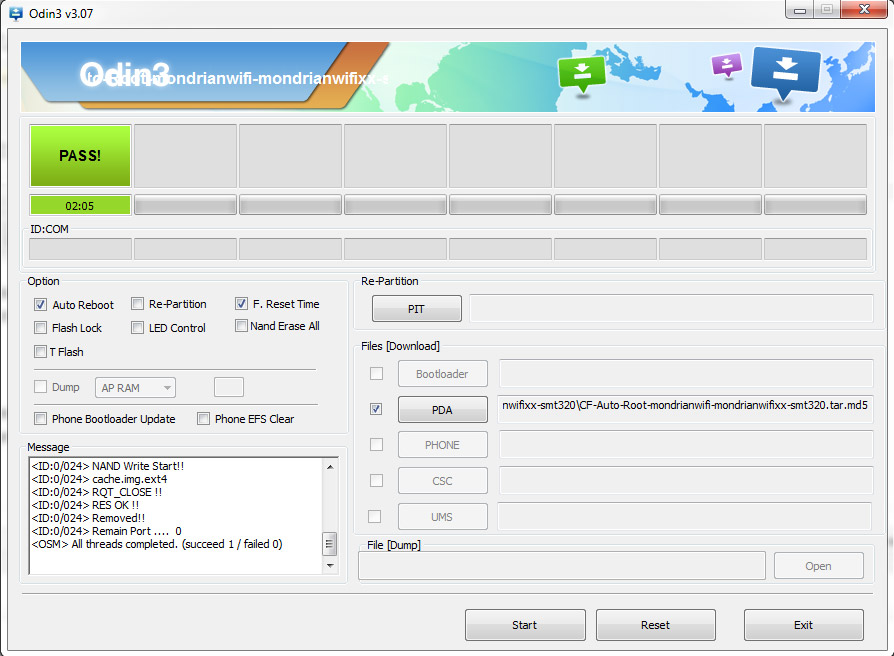
Now connect the TabPRO 8.4 to your computer, after a few seconds Odin will detect the TabPro providing you have installed the USB drivers, you should see ‘Added !!’ in the Odin message box. Next click the PDA button in the Odin interface and load the CF-Auto-Root-mondrianwifi-mondrianwifixx-smt320.tar.md5 file from inside the folder you extracted earlier.

DO NOT change any of the other settings in Odin. Your Odin should look like the below image. The only difference will be the COM port number.

Rooting Sammy TabPRO 8.4

Now you are ready to root the TabPRO 8.4, just click the Start button at the bottom. This will now flash the root package to the TabPRO. The tablet will reboot and if all went well Odin should display PASS! as below.Rooting Samsung SM-T320

You can now confirm you have rooted the TabPRO 8.4 by just checking you have the SuperSU package installed in the App draw. Enjoy all the root goodness!

My now rooted the TabPRO is a great upgrade over my Samsung Note 8.0, having found I do not really miss the S-pen, the screen quality on the TabPRO 8.4 is mind blowing and so far probably the best in it’s class. Luckily I get to contrast and compare with pretty much all available tablets and smartphones in my day job so I am happy with my choice!